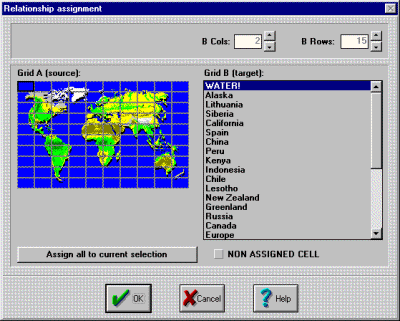
The relationship assignmentClic cannot deduce the relationships between the elements in the A and B windows in Complex, Indicate and Explore mode associations as they may have a different number of cells. To define the correct matches between the pieces you have to go to the edit activity window and, from there, enter the relationship assignment window through this button:
On entering the relationship assignment window the contents of grids A and B are shown in two lists or graphical areas. At the start they both have the same number of elements (those defined by grid A in the edit activity window). The process for defining the relations is as follows:
- If grid B should have a different number of elements from A, start by changing its dimensions with the B Columns and B Rows counters.
- Click on the first element in grid A, the list or graphical area on the left.
- Select the corresponding element from the list or graphical area for B.
- Click on the second element in A.
- Select the corresponding element from B.
- Continue like this, always selecting first from A and then look for its match in B. If there is any cell in A without an assigned definition, select it and mark the Non assigned cell field. When the activity is started these cell will be hidden from the start or the alternative content will be shown if a file has been selected in the Solved grid A area in the edit activity window. In some associations there may be a lot of elements in grid A that correspond to a single cell in B. For example, in the "demo" pack activity where the map of the world is explored most of the cells are "WATER":
When editing an activity like this, it can be very practical to use the Assign all to current selection button, which gives all the cells in A the same match. In the case of the above activity we would start by selecting an area of the sea on the left, then we would select the text "WATER" and we would click on Assign all to current selection. Then we would go along, selecting the cells where a country or part of the work appears one by one and we would click on the corresponding line on the right. In the complex associations a field with the text Inverse resolution appears in the relationship assignment screen. Marking this field will result in an activity with different behaviour. All the cells in A will not have to be solved, as in most associations, it will be enough match all the elements from B with one from A. Try marking this option in a complex association, such as ASS02.ASS in the demo. You will see that it is only necessary to find three verbs (one for each of the three tenses) and Clic will assume that the activity is solved.


|