Colours, fonts, background graphics and other optionsThe visual aspect of the screen where the activity is presented is basically controlled by two windows:
- Through the Fonts button that appears in activity edition (CTRL+E) the colours and fonts of the areas which show text or active contents can be changed.
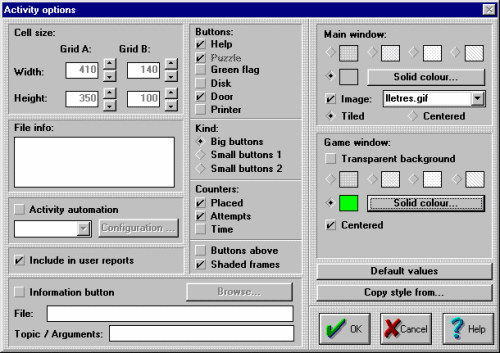
- In Activity options (CTRL+O keys) other parameters are set, such as the background colour, the game window position, the buttons to appear, etc. We shall now look in detail at how these two configuration boxes work:
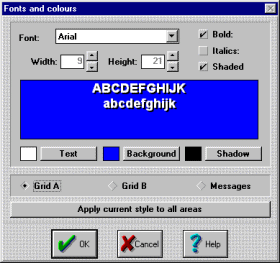
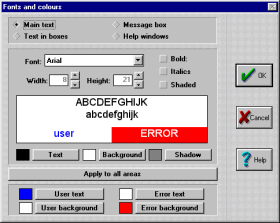
The Fonts and colours window has a different appearance, according to the type of activity being designed:
To change the fonts and colours, you have to follow these steps:
- Select the area to be modified. The main areas are grid A, grid B and the message box. In text activities, which we will see further on, there are four areas: main text, text in boxes, help windows and message box.
- Select the font by dropping the Font list. It is recommended to use the basic Windows fonts, especially if you are planning to install you activities on various computers. If you specify other fonts, the users of your activities will need to have these fonts installed as well. The basic Windows fonts are Arial, TimesNewRoman, CourierNew and System.
- Adjust the letter width and height, as well as the Bold, Italics and Shade attributes.
- Change the colours. To choose a colour, click on the buttons that appear to the right of the example boxes.
- If we want all the areas to have the same appearance, we just have to click on the Apply to all areas button. Otherwise we will have to select the areas one by one and follow all the above steps. You should to take into account that it will not always be possible to show the texts in sizes chosen. When Clic detects that text leaves the margins set for a cell, it automatically reduces the font size for the whole area of the cell in question. The cell and font size are two variables that are closely related. The Shadow colour is also used to fill the space left in the cells that disappear while an activity is being solved. Try changing this colour for the puzzles in the Clic "demo" and you will see how the changes are shown. The rest of the parameters that control appearance can be found in Activity options:
We have three options for the Main window (see the Areas of the screen section in module 1):
a) Choose one of the four grey shades.
b) Choose a colour. To do this, first you have select the diamond in front of the colour sample and then click on the Solid colour button to select it.
c) Choose a background image. The graphic can be tiled (filling the whole window) or centered in the middle of the screen, filling the rest with the selected colour or shade. Some of the text activities in the Clic "demo" use background images: for example, TXA02.TXA (tiled), or TXA06.TXA (centred). We also have three options for the Game window:
a) Make it transparent. In this case the colours, shading or background images selected for the main window dominate.
b) Select a shade.
c) Select a solid colour. The game window appears centred on the screen by default, but it is possible to place it elsewhere. This option is usually used together with a centred background image in the main window, which acts as a decoration for the activity. Many other parameters that control the activity appearance are controlled by the activity options:
- The buttons and counters which have to appear.
- The design of the buttons. There are three possibilities:
The colour used to draw the small buttons 2 is the same as the one selected for the message box text in the Fonts window.
- The Button position: on the left or at the top of the screen.
- The showing or non-showing of a rectangle around the game window, the message box and the counters. This is controlled by the Shaded frames option.
- The width and height of the cells. When dimensions are set that, with the current cell layout, exceed those permitted by the screen, Clic reduces them until they fit, keeping the indicated height/ width ratio. For example, suppose that we have made an activity with a grid that has a maximum space of 540 x 320 points on the screen (see the graphic of maximum dimensions in the previous module), and that there are 10 rows and 10 columns. If we set a cell size of 100 x 50 we will obviously exceed the available space (we would need an area of 1.000 x 500 points!). Faced with this Clic will end up setting the dimensions at 54 points for the width (540/10=54) and 27 points for the height as the sizes set (100x50) imply that the height should always be half the width (54/2=27). In fact there will be left over vertical space; the grid will take up 270 points (10x27) and there are 320 available, but Clic will always try to respect the ratio between width and height indicated. When there are two grids the calculations are a little more complicated, but the same principle is followed, shrinking the cells as much as needed to fit them on the screen and keeping their proportions. These considerations about cell size are only taken into account when the content is "text". With graphics, Clic automatically calculates the sizes and proportions from the real size of the image. In text activities only the dimensions of grid A, which has one single cell, are considered.


|