
Practice 3
Adapting an existing pack
In this exercise we will download, install and separate an activity pack from the "Clic Corner". We will make some translations and other changes and then repack it.
- Look for the "Trencaclosques d'animals" activity package by Pilar Codina in the "Clic Corner". You can use the search facility in the "Corner" or go directly to Activities - Activities by topics - Miscellaneous.
- When you find the page for this pack, download the catalan version ANIMALS.EXE file and save it in the practice folder for module 4.
- Run the installer and, when asked, change the working directory proposed (C:\CLIC\ANIMALS) for another folder called ANIMALS but below the practice folder. The full path should be:
C:\Clic\Course\Module4\Practice\Animals
- When the programme asks where you want to put the icon in the program manager, change the proposed name ("Clic") to Course. That way we will not interfere with any other installation of this pack that there might be on the same computer.
- Try out the icon, which should appear in the Course group.
In this puzzle pack the messages appear in handwriting. Let's assume that in our school we teach students how to read and write using block letters (instead of joined writing), and that we want to change the activities so that the students work with simple sentences in English.
To make things easier, rather than keeping the three packs (with 4, 6 and 12 pieces), we will just make one with 6 pieces.
The packs cannot be changed in their current format, PCC, which deactivates the edition menus. We will have to use ClicPac to separate it:
- Close Clic.
- Open ClicPac and select Compact Clic packs (*.PCC) in the top left part of the window.
- Find the folder that we have just installed the pack in and select ANIMALS.PCC from the list. ClicPac will analyse the file and show a list of its contents.
- Click on the Separate button and then on Extract. ClicPac will tell you that 76 new files have been created. Click on Ok and Exit.
At the moment we have two versions of the pack in the working directory: the compact version (ANIMALS.PCC) and the normal version (TRENCACL.PAC).
- Open Clic, go to File - Open and find TRENCACL.PAC. It is important to select the "PAC" version, as the PCC version will not let us make any changes.
- The first activity is an information screen showing the name of the pack and the author. We will change it to reflect the changes we are going to make:
- Edit the activity (CTRL+E) and click on the Edit contents button. If everything goes well, PaintShop Pro will start up with the PORTADA.GIF image*.
- Change the pack name to PUZZLES WITH ANIMALS and, underneath the author's name, type "English version by " and your name. It should look more or less like this:
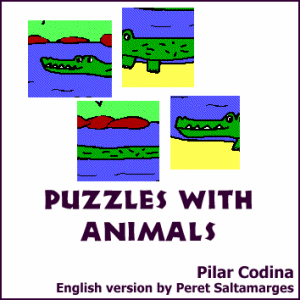
- Save the file and close PaintShop Pro.
- Change the welcome message to:
Go to next screen
- Click on the Fonts button, select the Messages area, change the font to Arial at 14 x 36 and click on the Apply to all areas button.
- Save the file with File - Save (or use the Shift+F12 shortcut).
- Edit the activity pack (CTRL+P) and delete the PORTADA.ASS file from the list on the right, leaving just the PORTADA1.ASS file. This will make sure that PORTADA.ASS does not appear in the menu of options in the adapted pack.
- Add the following activities to the pack: camel6.puz, cocodri6.puz, foca6.puz, mariet6.puz, misi6.puz, and tortug6.puz (we could add more, but we will keep to these six puzzles to make the exercise easier).
- Accept the changes made to the pack and save it as ANIPUZEN.PAC.
- Click on the forward arrow in the pack to go on to the first activity, CAMEL6.PUZ. Edit it with CTRL+E and change the welcome message to:
The camel lives in the desert
... and the good bye message to:
How hot it is!
- Click on the Options button and then Copy style from. Select PORTADA1.ASS and accept. This will give the same font type as the first activity.
- Save the activity with Shift+F12 and go on to the next one.
- Now it is a case of doing the same with the rest of the activities in the pack. Here are some suggestions for the translations:
| Un cocodril est� nedant! |
The crocodile takes a bath! |
Aquest animal �s polar
Quin fred! Molt b�! |
This animal lives near the pole
How cold it is! Good! |
Quin bitxo �s aquest?
Molt b�! �s una marieta! |
What kind of bug is it?
Good! It's a ladybird! |
| Aquest animal no t� son |
This animal is not sleepy |
| Aix� �s una tortuga! |
This is a turtle! |
- When you have changed and saved the final activity, close Clic and open ClicPac.
- Find the ANIMALS folder within the practice folder for module 4.
- Select ANIPUZEN.PAC. ClicPac will look for all the elements connected to this pack.
- Click on the Compact button and then on Create compact Clic pack.
- There are now two copies of the independent files (activities, texts, images, etc.) in the PCC pack. In this case ClicPac asks us if we want to delete the extra copies from the hard disk. Say Yes to save some space.
Even though ClicPac has deleted those files, the files not used for TRENCACL.PCC are still in the folder. You need to use Explorer to delete them. Find the ANIMALS folder within the practice folder for module 4 and delete all the files there except ANIPUZEN.PCC.
To finish off, you should modify the icon created by the installer in the Windows Start Menu so that its command line points to ANIPUZEN.PCC.


|